
This tutorial will help you to configure Microsoft Outlook 2007-2010 for your cPanel email account.
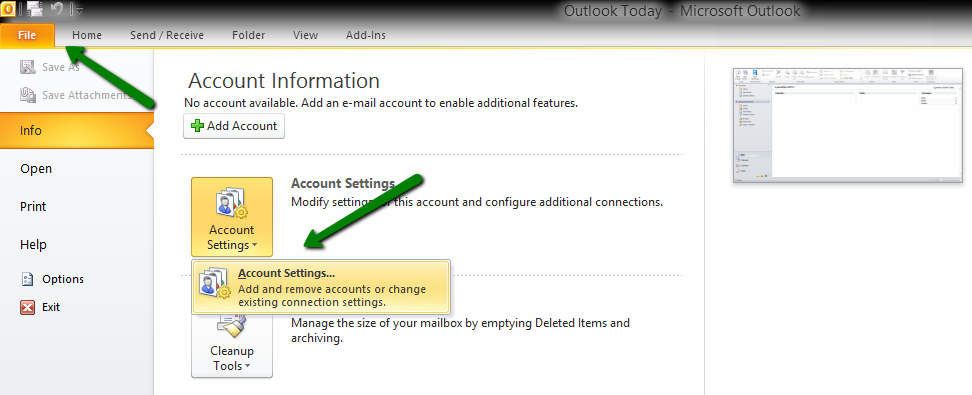
1. To create a new account in Outlook, first go to the tab File > Account Settings menu:
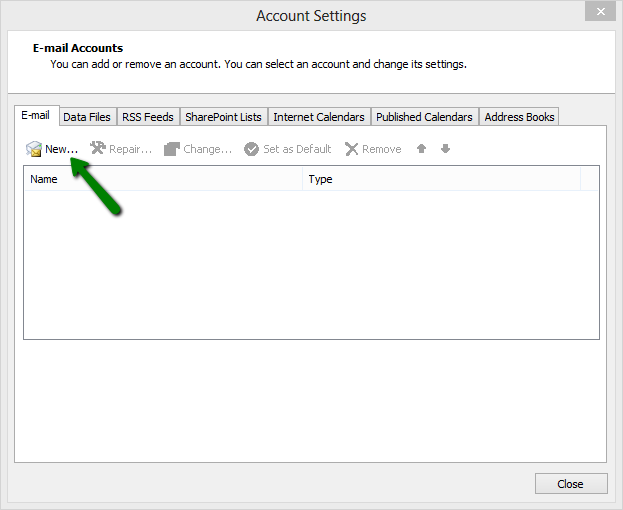
2. Click on New in the next window:
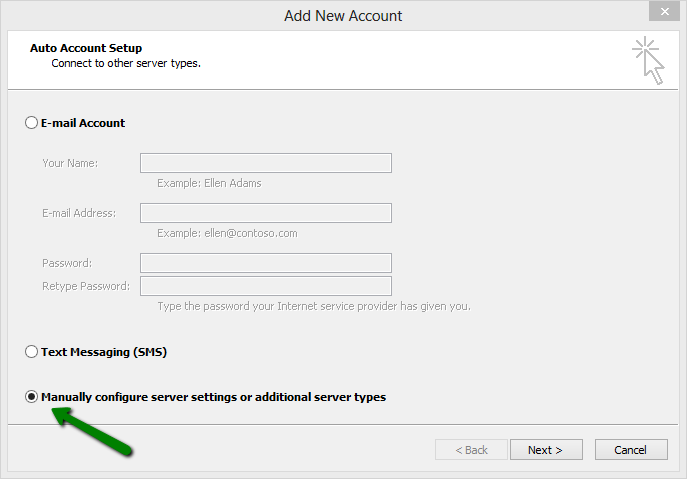
3. Choose the option Manually configure server settings or additional server types and click on Next:
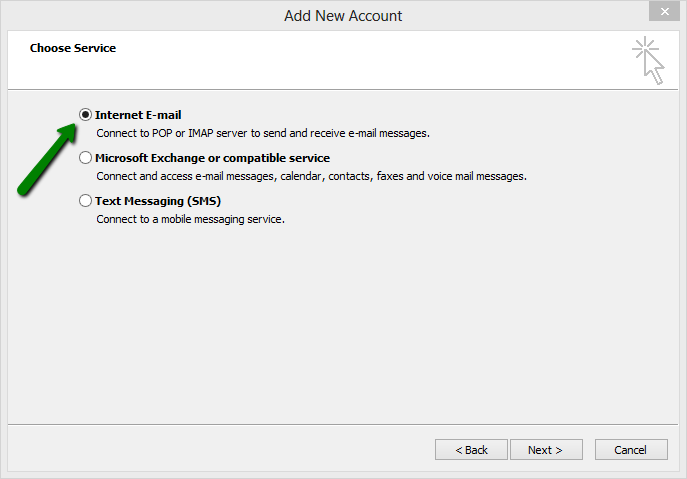
4. Choose Internet E-mail and click on Next:
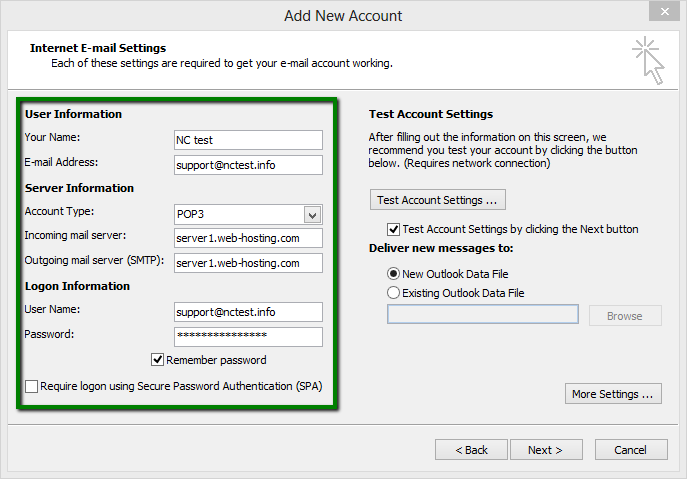
5. Enter the following settings in the corresponding fields:
Your Name: the name of your account in Outlook
E-mail Address: full email address
Account Type: select IMAP or POP3 from the drop-down menu
Incoming mail server: Please refer to your hosting activation email.
Outgoing email server: Please refer to your hosting activation email.
User Name: full email address
Password: password for this email account
Require logon using Secure Password Authentication (SPA): should be unchecked
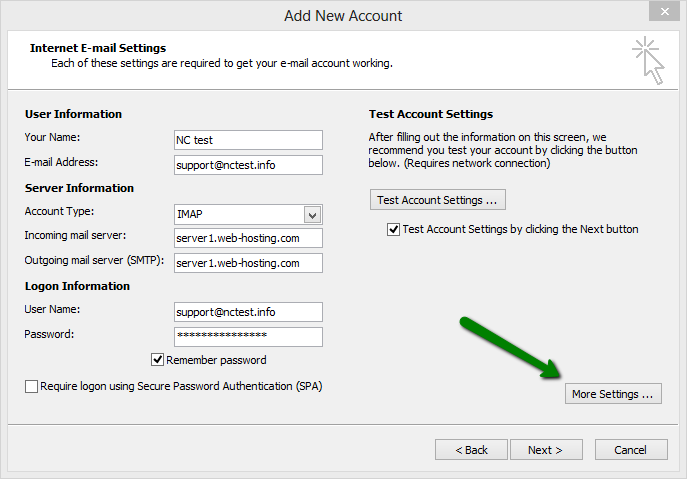
6. Click More Settings:
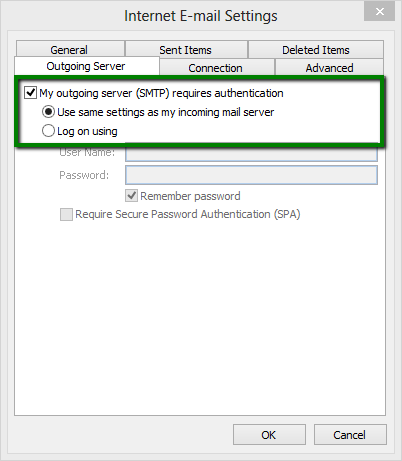
7. Go to the tab Outgoing Server and check-mark the option My outgoing server (SMTP) requires authentication:
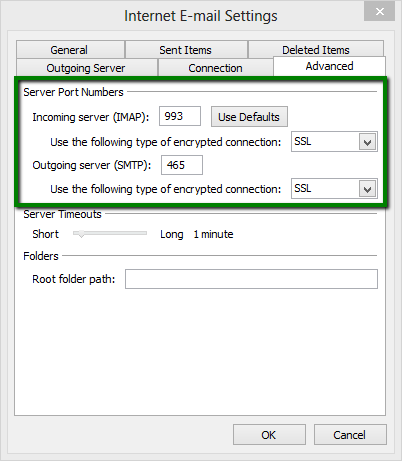
8. Now go to the tab Advanced and enter the following ports:
Incoming server (if are using IMAP): 143
Incoming server (if you are using POP3): 110
Outgoing server (SMTP): 26
9. Click on Ok to return to the main window.
10. Click Test Account Settings to check if everything entered is correct.
If it is, you will see the statuses Completed:
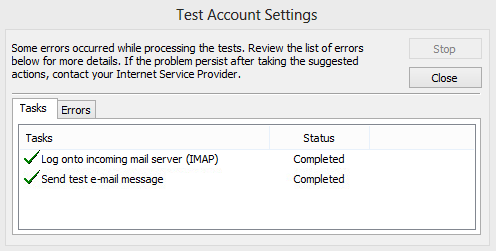
If the test was successful, you can now click Close to get back to the previous window then click on Next to finish the setup
